Blog
How to Prepare Artwork for DTF Transfers

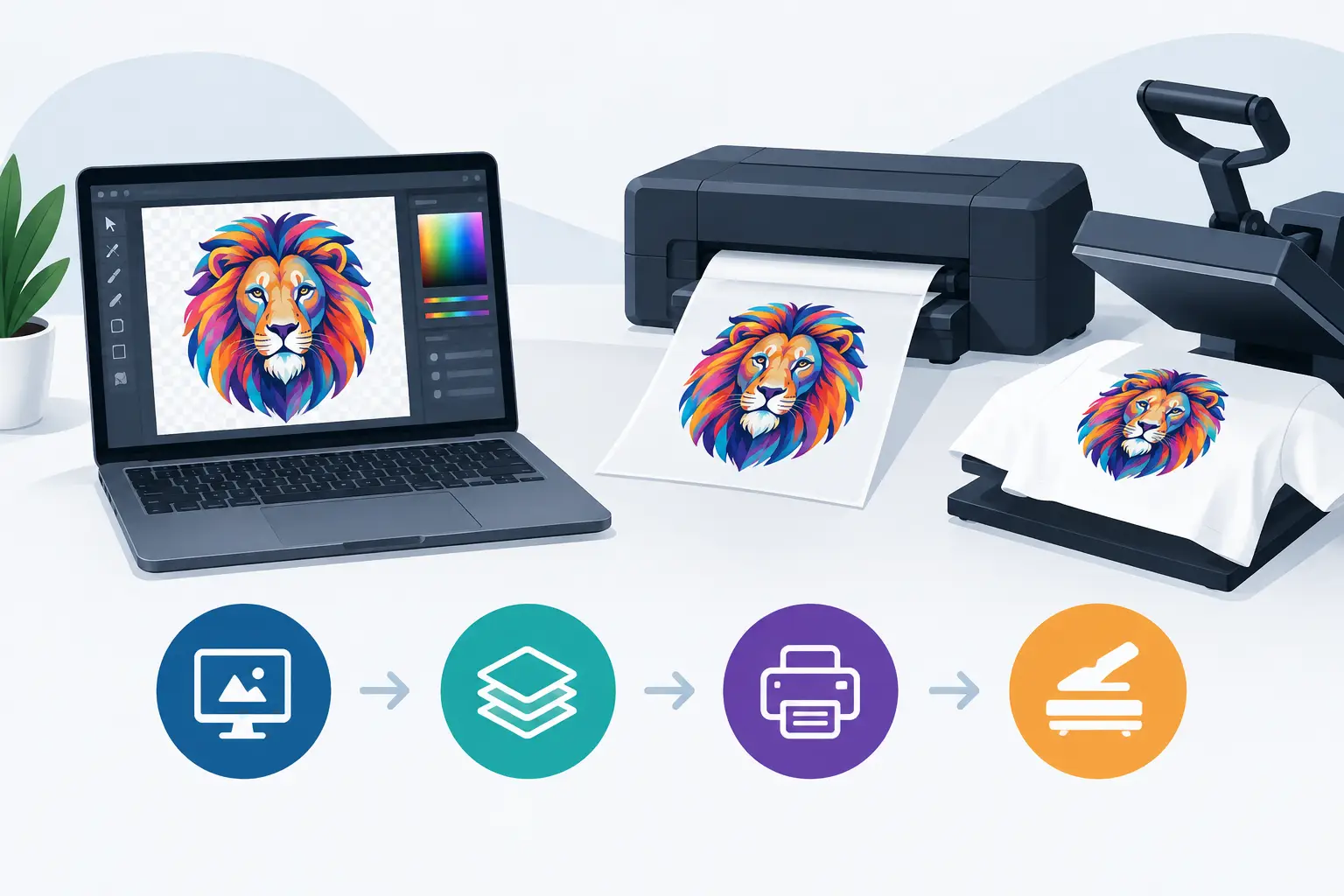
A great shirt design can lose its impact when the artwork is blurry, missing details, or built for the wrong background. The good news is that learning how to prepare artwork for DTF does not require you to be a professional designer. A few thoughtful choices before you upload your file can help your logo, event graphic, team design, or personalized idea print clearly and look intentional.
DTF, or direct-to-film printing, is a popular choice for detailed, full-color apparel graphics because it can reproduce small details, color blends, and artwork with multiple colors. Still, the finished result starts with the file you provide. Whether you are ordering one special shirt or coordinating apparel for an entire organization, use this guide to get your artwork ready with confidence.
Start With the Best File You Have
The easiest first step is also the most valuable: send the original artwork whenever possible. A file that was created for the design will usually be cleaner than a screenshot, a photo of a printed item, or an image copied from social media.
For logos, vector files are especially helpful. Common vector formats include AI, EPS, SVG, and PDF. Unlike a standard image file, vector artwork is made from editable lines and shapes, so it can be resized without becoming fuzzy. This is often the best option for business logos, school marks, team artwork, and simple graphics with crisp lettering.
A high-resolution PNG can also be an excellent choice, particularly for full-color artwork, illustrations, or designs with a transparent background. PDF files may work well, too, as long as they contain clear original artwork rather than a low-quality image placed inside a PDF.
A JPG can be usable when it is large, sharp, and created at high resolution. The trade-off is that JPG files do not support transparency and can show compression or a box-shaped background around the design. If a JPG is all you have, send the largest original version available instead of a version that has been texted, screenshotted, or downloaded from a preview.
Size Artwork for Where It Will Go
Before preparing the file, think about the garment and placement. A left-chest logo needs a very different setup than a full-front event graphic. Artwork that looks fine on a computer screen may become too small to read once it is printed on a shirt.
If you already know the print size you want, build or export the artwork at that size. For raster files such as PNGs, a resolution around 300 pixels per inch at the intended print dimensions is a useful target. For example, a design meant to print 10 inches wide should ideally be about 3,000 pixels wide.
Do not enlarge a small web image and expect it to gain detail. Enlarging may make the file dimensions bigger, but it cannot restore information that was never there. If your logo is only available as a tiny image, it is better to ask for the original file from the person or organization that created it.
Placement also affects design decisions. A wide design may suit a full front but feel crowded across the upper back. A small left-chest graphic needs readable type and simplified details. For family reunion shirts, spirit wear, staff apparel, or a birthday gift, sharing the intended garment and placement helps your print partner guide the design toward the right scale.
Use a Transparent Background When Needed
A transparent background lets the garment color show around the artwork instead of printing a solid rectangle behind it. PNG is the most common file type for this purpose.
Transparency matters most when your design has an irregular outline, such as a mascot, floral illustration, script lettering, or logo that is not contained in a square or circle. It creates a cleaner, more natural look on the garment.
Be careful with images that appear to have a transparent background in a design program but were exported as a JPG. JPG files cannot retain transparency. Also check for unwanted remnants around the edges, such as a white box, stray pixels, or a background color that is nearly, but not quite, the same as the shirt color.
That said, a background is not always a mistake. A deliberate badge shape, colored panel, or rectangular photo-style design can be part of the artwork. The key is making sure it is there by choice, not because the file was saved incorrectly.
Make Small Text and Fine Details Work Harder
DTF can handle detailed art, but every printed design has practical limits. Extremely thin lines, tiny lettering, closely packed elements, and small cutouts may not read as clearly on a garment as they do at full zoom on a screen.
Take a moment to view your design at roughly its intended print size. Can you read the smallest line of text without zooming in? Are thin lines still visible? Do small spaces inside letters and icons remain open? If not, consider increasing the text size, using a slightly heavier font, thickening delicate lines, or simplifying crowded areas.
This is particularly helpful for logos that include a tagline, phone number, web address, or detailed illustration. For a left-chest print, it may make sense to use the logo mark and business name only, while saving the fuller version for a larger back print. The best file is not always the one with the most information. It is the one people can recognize quickly from a normal viewing distance.
Choose Colors With the Garment in Mind
Your screen may make colors look brighter or different than they appear in print, and the shirt color becomes part of the overall design. A dark navy logo can disappear on a black shirt. White details may be hard to see on a light gray garment. A vibrant design may need a border or a revised color treatment to stand out on a busy tie-dye or patterned item.
When you submit artwork, include any brand color information you have, especially if consistency matters across uniforms, promotional apparel, or event merchandise. If you have a preferred color reference, provide it along with the file. It gives the production team a clearer starting point than a verbal description such as “bright blue” or “deep red.”
For designs going on more than one garment color, it may be worth creating alternate versions. A light version for dark shirts and a dark version for light shirts can keep the artwork readable without forcing one file to do every job. This is common for company apparel, school spirit wear, and team orders that offer multiple color choices.
Keep Edits Organized Before You Upload
When an order includes names, numbers, dates, or multiple garment sizes, clear organization prevents avoidable mix-ups. Name files in a way that identifies the design and version, such as “Spring_5K_Front_Final” or “ABC_Plumbing_LeftChest_WhiteLogo.” Avoid filenames like “final-final-new2,” especially when several people are reviewing the order.
If a design contains editable text, check spelling carefully before sending it. Review names, graduation years, event dates, sponsor names, and contact information one more time. These details are easy to overlook and can be difficult to catch once a graphic has been approved.
For an organization order, it also helps to separate the artwork instructions from the garment list. Your design file should show what prints where. Your order notes can identify which sizes, colors, and quantities receive each version. A simple, clear setup makes it easier for everyone to stay on the same page.
What to Send With Your DTF Artwork
The artwork file tells part of the story, but a few order details complete the picture. Along with the best available file, share the garment color, desired print location, approximate print size, and how many pieces you need. If the design is for an event, team, business, or gift, a brief note about the goal can be useful as well.
If you are unsure whether a file is print-ready, send what you have rather than trying to guess. A clean logo file, a screenshot of the intended layout, or even a clear description can give a production team something to review. Busy Bee Stitches can help you understand what is workable and what may need adjustment before your project moves forward.
A Quick Final Check Before You Submit
Before uploading, open the actual file you plan to send, not just the version displayed in your email or design program. Check that it is the correct version, that the artwork is not cropped, and that backgrounds appear exactly as intended. Then view it at a smaller size to make sure the text and details still read clearly.
Preparing artwork is really about protecting the idea behind it. A polished file helps a business logo look professional, lets a team graphic show its spirit, and gives a personalized shirt or gift the care it deserves. Bring your best file and your project details, and you will be well on your way to a design that feels ready to wear.
Latest Post